Mastering the Honey Bee 3D Text Effect Design Template: Avoid These Common Pitfalls
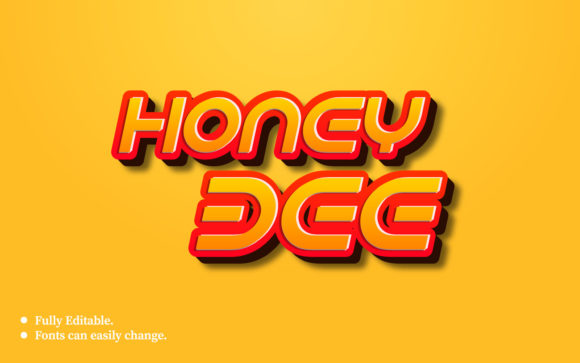
The Honey Bee 3D Text Effect Design Template offers a compelling way to add warmth and dimension to typography, with its honeycomb textures and layered highlights. It appeals to everyone from social media creators to small business owners looking for a quick, professional aesthetic. Yet, many users encounter issues that turn a promising start into a frustrating experience. These problems often stem from simple oversights during selection, setup, or application. Understanding these common mistakes beforehand saves time, preserves quality, and ensures the final design meets your needs.
What Is the Honey Bee 3D Text Effect Design Template?
This template typically provides a layered file—often in PSD or vector format—with pre-built styles that simulate a realistic, three-dimensional text effect with honey and honeycomb motifs. It includes adjustable elements like gradients, textures, shadows, and highlights. Users can replace the placeholder text and customize colors to fit their brand or project. The appeal is speed and consistency, but the template still requires thoughtful handling. Missteps occur when users assume it works automatically in any context without adjustments.
Overcomplicating the Layer Structure
Jumping into a complex layer panel and making haphazard changes is a frequent error. Beginners might delete a subtle shadow layer, thinking it adds noise, only to flatten the entire effect. Experienced designers may add too many custom textures, crowding the honeycomb pattern. This reduces the visual impact and introduces unwanted artifacts.
Better approach: Study the layer organization first. Most templates group layers by function—base color, texture, lighting, and depth. Make one adjustment at a time. If you need a warmer tone, adjust the color overlay layer rather than adding an entirely new gradient. This preserves the original three-dimensional structure while achieving your desired palette.
Ignoring Software Version Compatibility
Templates are often built for specific software versions, such as Photoshop CC 2024 or Illustrator 2023. Opening them in older releases or alternative programs can break smart objects, layer styles, or rendering. I have seen users waste hours troubleshooting a file that simply isn't compatible.
Practical advice: Always check the compatibility details before downloading. Look for the required software and minimum version. If you use GIMP or Affinity, confirm the template includes universal file formats like PSD with full layer support. Test a small sample before committing to a full project. If a template is labeled for Photoshop, using it in a different editor may lose essential effects.
Mismanaging Lighting and Angle
The three-dimensional illusion in the Honey Bee template depends on consistent lighting. A common oversight is applying the template without considering the primary light source in your overall composition. For instance, if your banner has light coming from the top left but the template uses a top right source, shadows clash and depth suffers.
Corrective measure: Many templates allow you to adjust the light angle through layer effects or smart filter settings. Before finalizing, align the shadow direction with the rest of your scene. Also, test the effect on a neutral background that reveals both highlights and shadows clearly. Dark backgrounds can obscure shadow details, while white backgrounds may wash out highlights. Adjust the contrast accordingly.
Overlooking Customization for Your Use Case
Using the template without modification for every project is a missed chance. The honeycomb texture and amber gradients suit playful, nature-inspired, or warm-toned designs. Using them unchanged for a corporate tech presentation can feel mismatched. The result is a disconnect between the visual style and the message.
Better practice: Customize the texture scale, glossiness, and color palette to fit the context. For a brand, reduce the texture intensity so it doesn't distract from readability. For a poster, increase the glow for a more dramatic effect. Treat the template as a base—adjust the honeycomb pattern size so it complements the text weight, not competes with it. Small tweaks to hue and saturation can align the effect with a specific brand identity.
Using the Wrong File Format or Resolution
Many users download a flattened JPG version because it is smaller or faster to obtain, losing all layer control. Others select a low-resolution file for a print project, resulting in pixelation. This mistake undermines the template's main advantage—flexibility and quality.
Solution: Always acquire the template in a native layered format such as PSD, AI, or EPS. Choose the highest resolution available, especially if you plan to print. If you need both web and print versions, look for templates that offer multiple DPI options. When saving your final work, keep a layered backup. Avoid flattening until the design is fully approved and you are sure no revisions are needed.
Neglecting Background and Context Testing
A design that looks perfect on a white canvas may fail on a textured or dark background. The transparency and glow effects in the Honey Bee template can behave unexpectedly. I have seen text effects become nearly invisible when placed over a busy pattern or a photograph with similar tones.
Preventive step: Test your completed design on at least three different backgrounds relevant to your use—light, dark, and patterned. Adjust the text layer's blending mode if necessary. Consider adding a subtle stroke or drop shadow outside the template to ensure readability. If the background is highly detailed, reduce the honeycomb texture opacity so the text remains legible.
Not Using Smart Objects for Revisions
Some users rasterize the text layer immediately, thinking it locks in the effect. This destroys the ability to change wording or font later. For client work, this can cause unnecessary rework and wasted time.
Better workflow: Keep the text as a smart object or editable text layer throughout your design process. In Photoshop, double-click the smart object thumbnail to edit the content, save, and close—the effect updates automatically. This approach allows infinite edits without degrading quality. If you need to apply the same template to multiple text pieces, duplicate the smart object and edit each individually.
Overlooking Performance and File Size
High-resolution 3D text templates can be resource-intensive. A common oversight is working with all layers visible on an underpowered machine, causing lag or crashes. This slows productivity and can corrupt files during saving.
Recommendation: Toggle off unnecessary layers while editing. Collapse groups to simplify the panel. Work on a smaller copy for initial layout and color decisions, then apply settings to the full resolution file. Save frequently, and close other applications to free memory. If the template has many rasterized textures, consider converting some to smart objects to reduce file size and improve performance.
What to Check Before Buying or Downloading
Before committing to a specific Honey Bee 3D Text Effect Design Template, verify several factors to avoid disappointment. Read the product description for details on included file types, layer organization, and whether a tutorial is provided. Check the license—some templates restrict commercial use, while others allow unlimited projects. User reviews often reveal compatibility issues or support quality. Look for recent updates; a template that hasn't been updated in years may not work with current software. Preview the demo images critically and consider if you can achieve similar results with your skill level. Be realistic about the customization required.
Better Practices for Optimal Results
Once you have a suitable template, adopt a workflow that maximizes its potential. Always start with a backup copy of the original file. Use non-destructive editing techniques—adjustment layers, smart filters, and layer masks—so you can refine the effect later. Incorporate the text into mockups early to see how it interacts with other design elements. This reveals spacing or contrast issues that are not apparent in isolation. Finally, experiment with combining the template with other design elements like subtle noise gradients or vignettes to make the effect your own. The Honey Bee 3D Text Effect Design Template is a tool, not a crutch; thoughtful use produces results that feel intentional and polished.
By avoiding these common mistakes and applying the practical corrections outlined here, you can leverage the template's strengths without falling into its pitfalls. Whether you are creating social media graphics, website headers, or branded materials, a careful approach ensures your typography stands out for the right reasons.